
Create / Documents
Create
Documents
Contracts, plans, checklists and handbooks as Word or PDF files.
Contracts, checklists, plans, policies, handbooks, briefs — describe the document you need and Firelent writes it as a Word file, ready to edit, send or print. Ask for a PDF and you get a PDF.
How it works#
Open Document
On your dashboard, click Create and choose Document — or ask for a document in the chat of any website project.
Describe it
Start from one of the ideas or write your own: what it is, who reads it, and what it must contain.
Read it in the preview
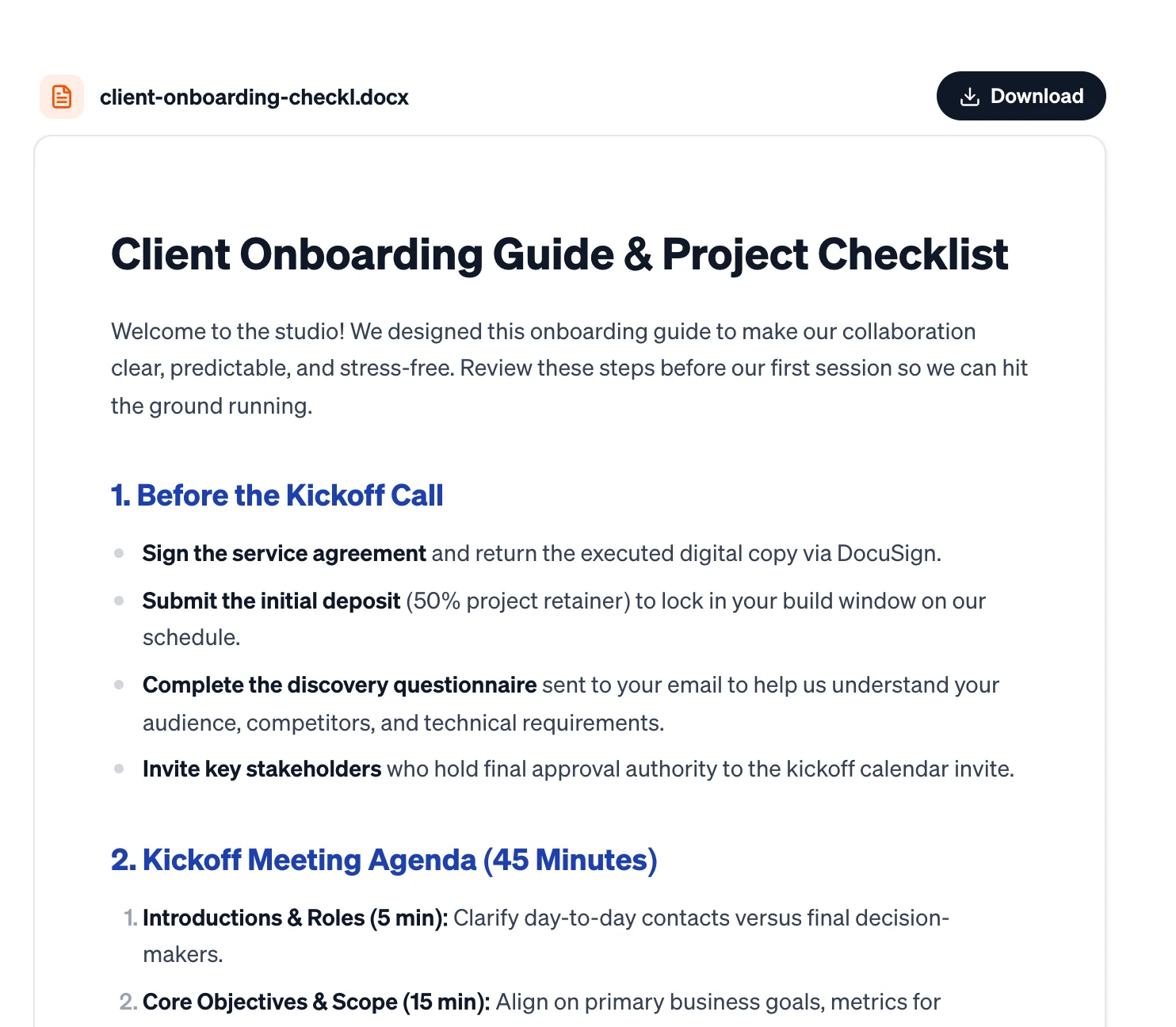
The document appears next to the chat, formatted like a page.
Download it
Click the file in the chat or Download above the preview.
Each document costs 2 credits — refunded automatically if something goes wrong.
What's in your document#
| File | Word (.docx) — or PDF when you ask for one |
| Structure | Up to three levels of headings, paragraphs, bullet and numbered lists, quotes and tables |
| Formatting | Bold text, and an accent colour for section headings |
The headings are real Word headings, so the navigation pane works and you can add a table of contents in Word with one click (References → Table of Contents). Images, links, page numbers, headers and footers aren't added yet — put them in afterwards in Word, Google Docs or Pages.
Write a prompt that makes a good document#
Tell Firelent:
- What it is and who reads it. “A checklist for new clients” and “an internal process for our team” need different words.
- The sections, in order. List them, and say which parts should be a table or a checklist.
- Your facts. Names, prices, dates, deadlines, rules — Firelent can't look them up and fills gaps with examples.
- The length. “One page”, “two pages”, “short sections”.
- The tone. Plain, friendly, formal, firm.
Create a one-page client onboarding checklist for a small web design studio: before the kickoff call, the kickoff agenda, what we need from the client, the first two weeks as a table, and who to contact. Plain language, short sections.
Make it read well#
- Main point first. Start with what the reader needs to know or do. Background comes after.
- Short sentences. Around 15 to 20 words on average; anything over 25 is hard to follow.
- Headings that say something. “Payment is due in 14 days” tells more than “Payment”.
- Lists for steps, tables for comparisons. Readers scan before they read.
- One idea per paragraph.
Contracts and policies need a human check
Firelent can draft a contract, a privacy policy or terms, but it isn't legal advice. Have anything binding reviewed by a lawyer, and check every fact, number and name before you send a document.
Change it#
Ask in the same chat — “make it shorter”, “add a section on payment terms”, “as a PDF”. Firelent writes a new version as a new file, for 2 credits. It's written from your request and a summary of the previous version, so say what should stay: “same sections, but friendlier”. For small edits, changing the file yourself is quicker.
Your files, in one place#
Every document, deck, spreadsheet, image and recording you create is collected in Library in the sidebar.
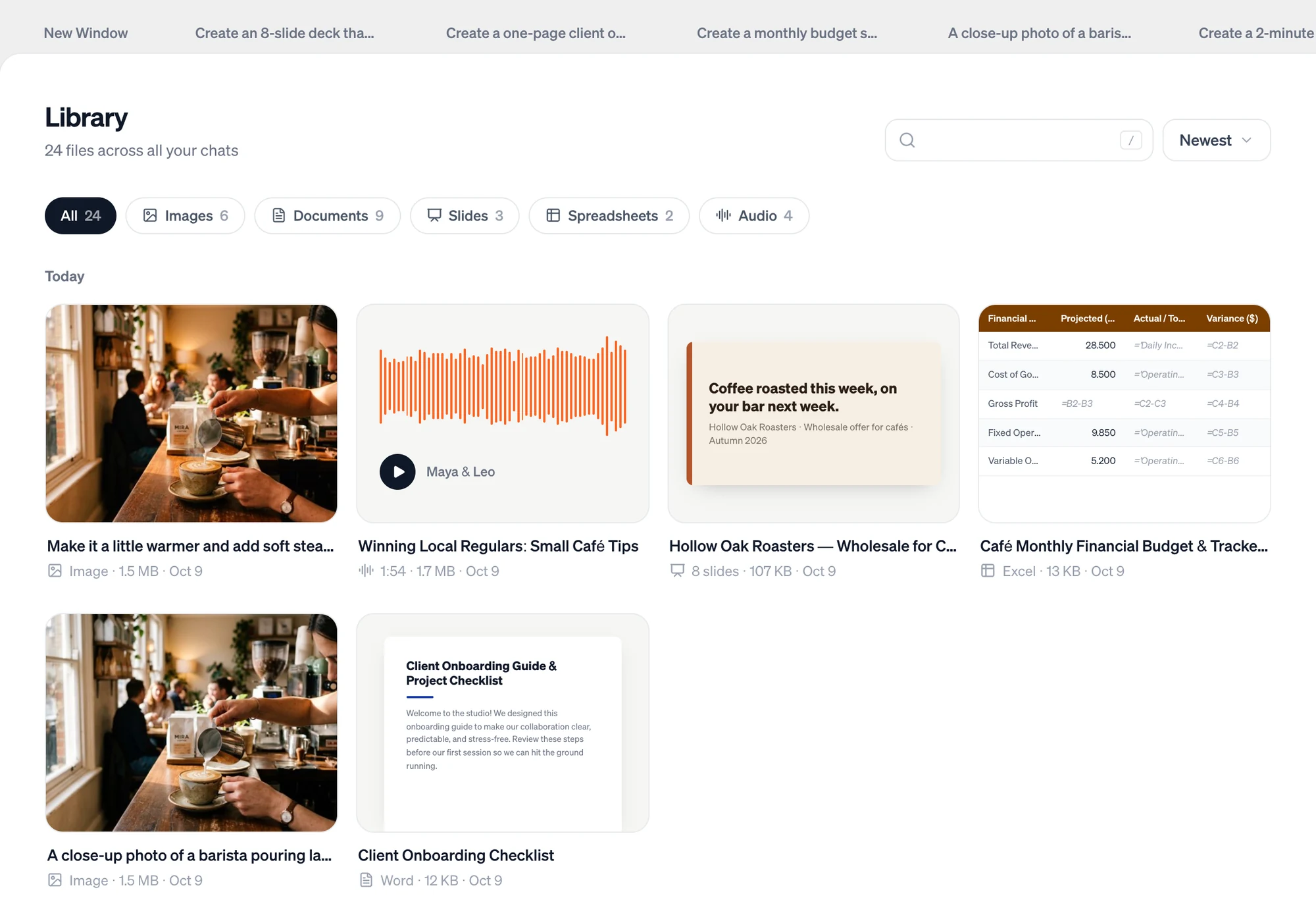
- Filter by Images, Documents, Slides, Spreadsheets or Audio.
- Sort by newest, oldest, name or size, and search by file or chat name.
- Hover a file to download it, preview it, or open the chat it came from.
FAQ#
Can it open in Google Docs or Pages?#
Yes. Headings, lists and tables come across; check the layout once after opening.
Can I upload a document for Firelent to rewrite?#
Not yet. Paste the text into your message instead.
Can I get a PDF instead?#
Yes — just ask for a PDF in your message.