
Build / Code Editor
Build/Projects
Code Editor
Browse, search and download your project's code, and point the chat at any file or line.
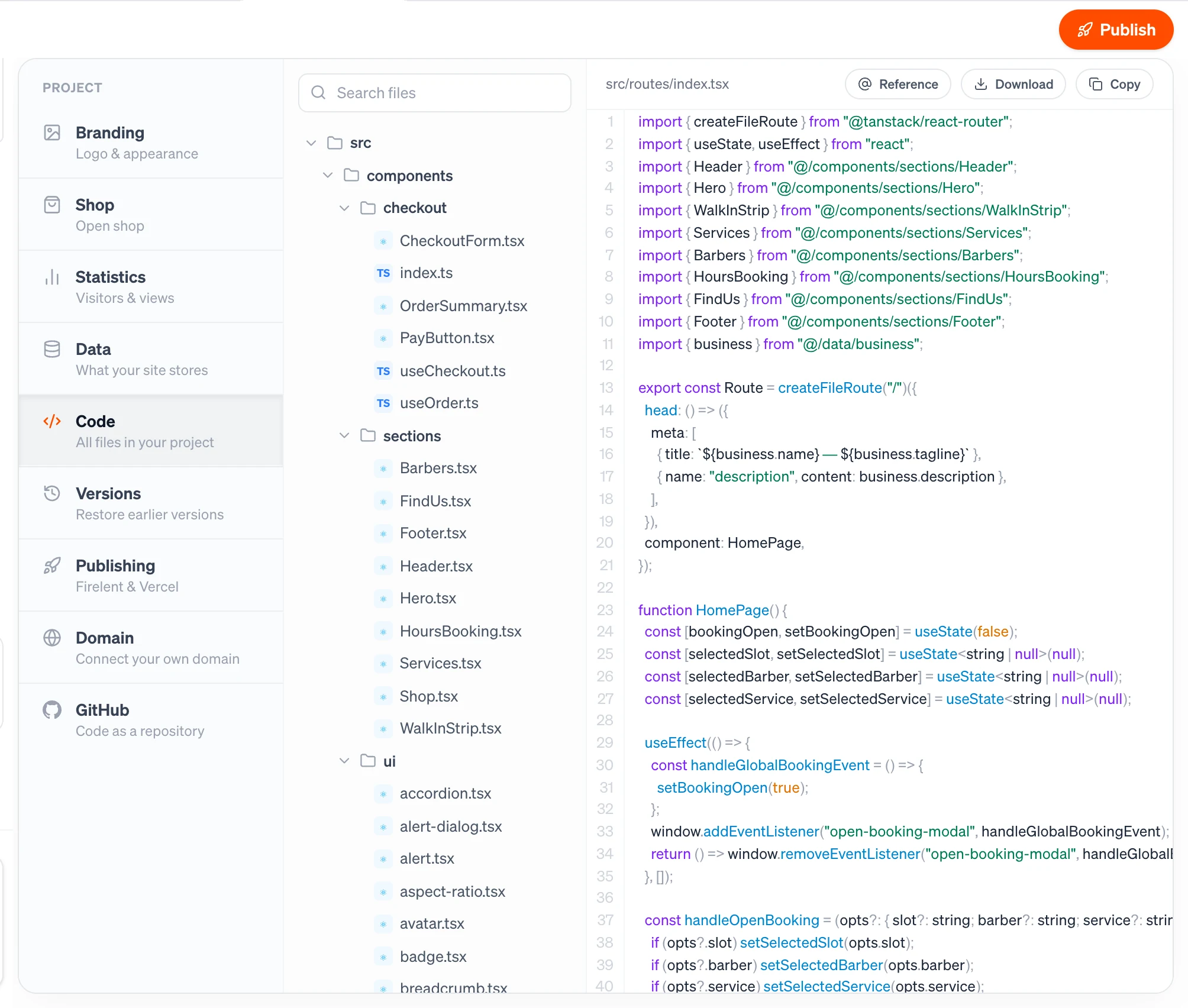
Every Firelent project is real code, and the code editor lets you look inside it: browse every file, read it with syntax colours and line numbers, download it, and point the chat at exactly the file or line you want changed.
Open it from any project: switch to the Project tab in the top bar and choose Code.
Find your way around#
- The file tree on the left lists every file in your project, folders first. Click a folder to fold it away, and a file to open it. Small badges show the file type at a glance.
- Search files filters the tree by file name or path — type
headerto find every file with “header” in its path. - The viewer on the right shows the open file with line numbers and syntax colours, with its full path above it.
The editor opens on your site's main page file, so you always start somewhere familiar.
Change code through the chat#
The code editor is for reading — you change your code by asking Firelent in the chat. The code editor makes those requests precise:
Reference a file
Click Reference above the file. A reference to it is added to your message box.
Or reference a single line
Hover a line number and click the orange + next to it to reference just that line.
Describe the change
Add what you want — “make this button rounded”, “translate this text into English” — and send it.
References are added to your message, not sent on their own, so you can collect a few before you write.
Download and copy#
- Download saves the file you have open.
- Copy copies its contents to your clipboard.
To take your whole project with you, link it to GitHub: every build is committed to a private repository in your own account. See GitHub.
Good to know#
- The file list loads when you open Code. If Firelent has changed your project since, open the section again to see the latest files.
- Firelent's own helper files are hidden from the tree, so you only see your project's code.
- The code editor is the same in every project — websites, apps and imported projects.