
Build / Branding
Build/Projects/Project settings
Branding
Add your logo and set how large it appears on your site.
Branding is where your logo lives. Add it once and Firelent places it in your site's header and footer — and if you haven't added one, your business name appears there as text instead.
Open it from your project: Project tab → Branding.
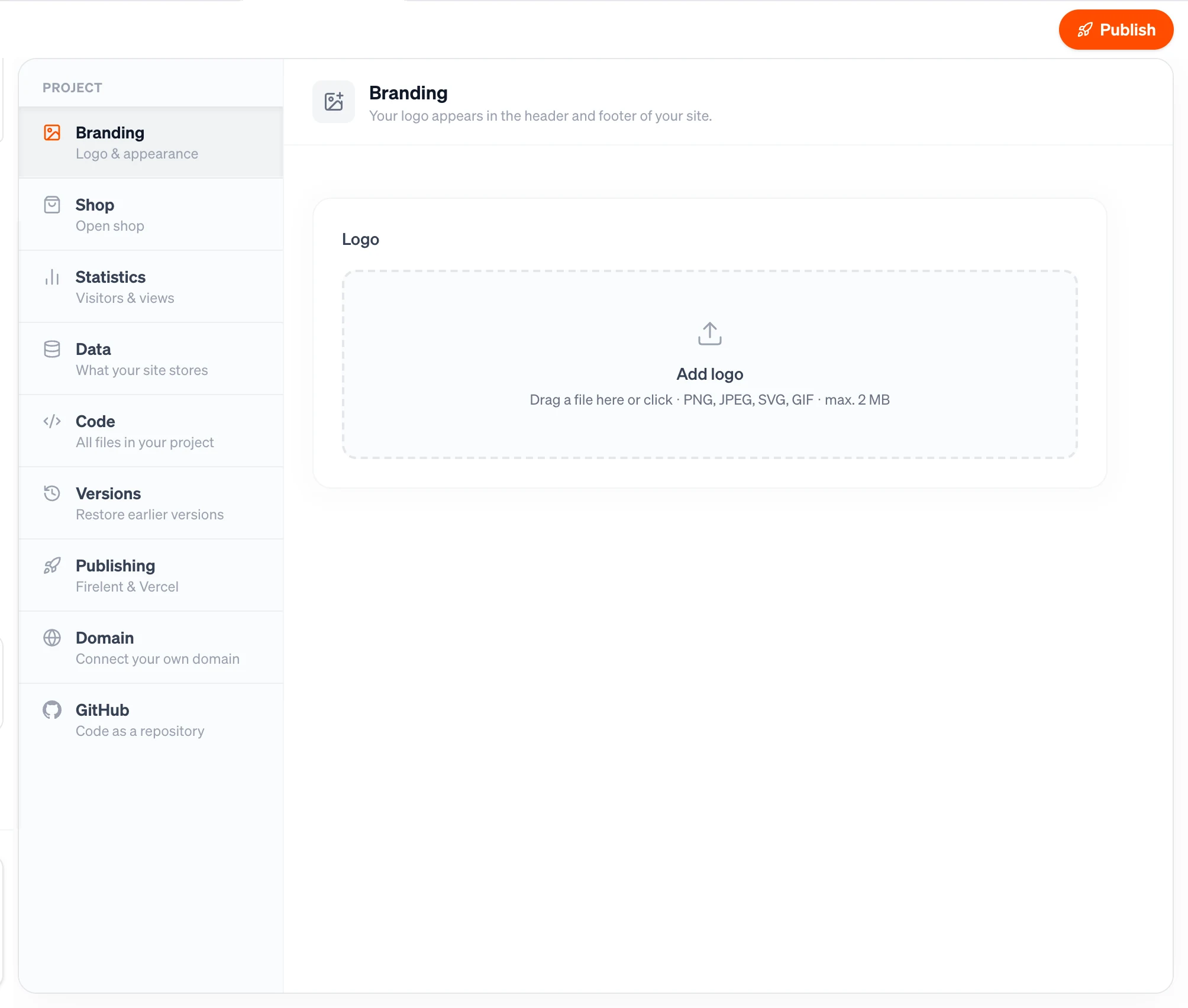
Add your logo#
Open Branding
In your project, switch to the Project tab and choose Branding.
Add the file
Drag your logo onto Add logo, or click it to choose a file. PNG, JPEG, SVG and GIF files up to 2 MB work.
Check it in the preview
Your logo appears in the preview straight away. When you're happy, publish to put it on your live site.
Which file works best?
An SVG stays crisp at every size. If you use a PNG, pick one with a transparent background, so it sits cleanly on any colour.
Change or remove it#
Once a logo is set, the section shows it with two buttons:
- Change logo — choose a new file. It replaces the old one everywhere.
- Remove — take the logo off your site. Your business name shows in its place.
Adjust the size#
You resize your logo right on your site, where you can see the result:
- Open the Preview tab and hover your logo.
- Click it. The Adjust logo panel opens.
- Drag the slider between small and large — the logo resizes live as you drag, anywhere from half to three times its normal size.
- Click Apply (or press Enter) to keep it, Reset to go back to the normal size, or press Esc to close without changing anything.
Replace image in the same panel takes you to Branding to swap the file.
Good to know#
- Adding, changing and resizing your logo is instant and doesn't run any AI.
- While Firelent is building, Branding waits until the build is done.
- Your live site updates when you publish. The Publish button shows Publish changes as a reminder.
If something goes wrong, Branding tells you why:
| Message | What to do |
|---|---|
| Only PNG, JPEG, SVG or GIF. | Save your logo in one of these formats |
| File too large (max. 2 MB). | Export a smaller version — for a logo, 2 MB is plenty |
| File is empty. | The file didn't save properly; export it again |