
Build / Preview
Build/Projects
Preview
See your website live while you build, open it full screen and edit straight from it.
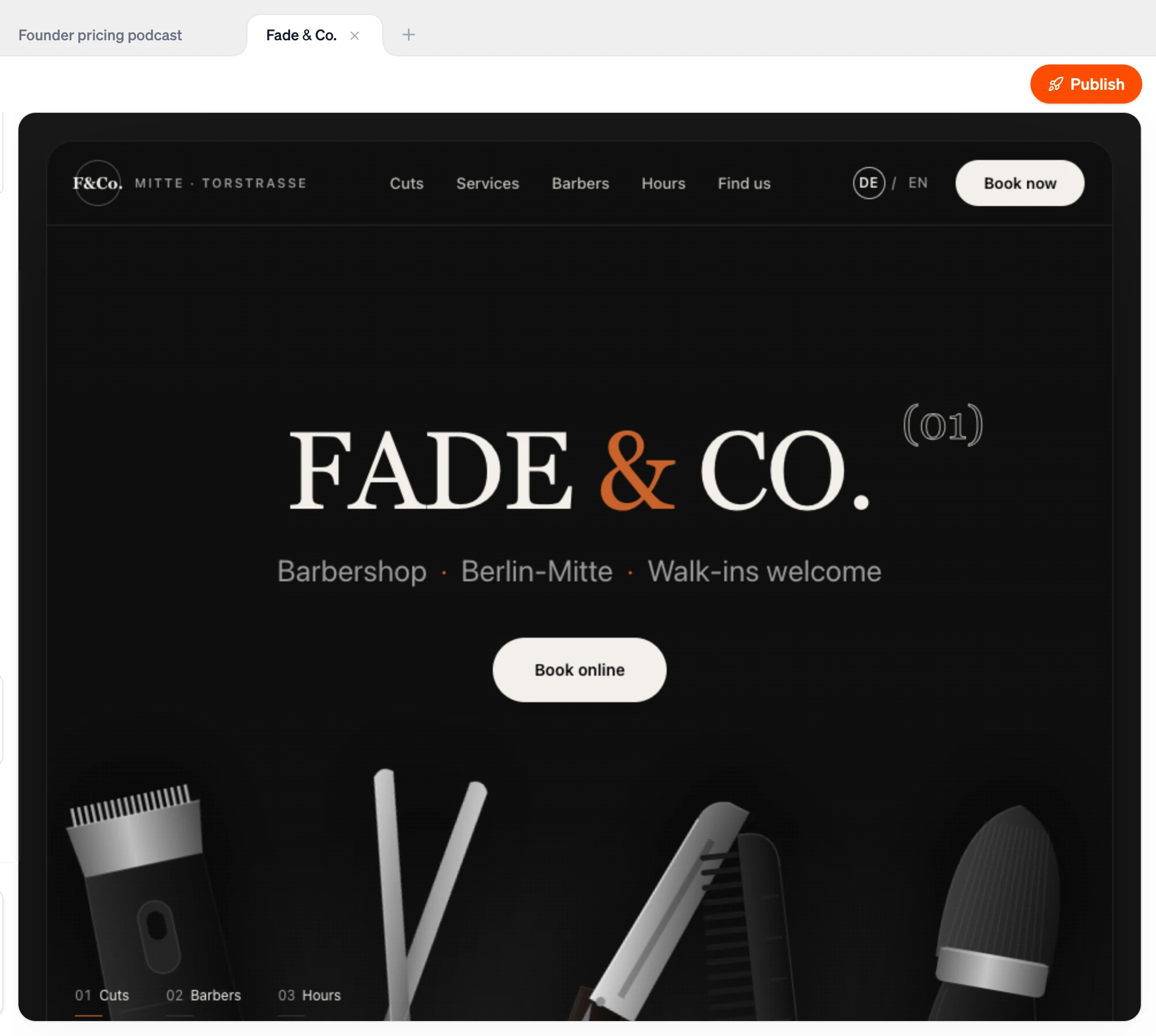
The preview shows your website running live, right next to the chat. It's the real thing, not a picture: links work, pages load and it responds to your clicks exactly as it will for your visitors. Open it from the Preview tab in the top bar of any website project.
How the preview loads#
When you open a project, Firelent shows your site straight away from a snapshot of its latest version, while the live preview starts up in the background. As soon as there's something new to show — you start a change, a change finishes, or you click into the preview — it switches to the live version on its own. You don't have to do anything.
Your first build#
A brand-new site has nothing to show yet, so the preview fills a flame while Firelent builds, with a percentage that tracks the progress. The first build of a website usually takes a few minutes. When it's done, you'll see We cooked something… — and then your site.
While you make changes#
Once your site is on screen, changes appear in place as soon as they're ready — no loading screen and no reload.
Full screen#
Click Preview in full screen — the icon next to the Preview and Project tabs — to give your site the whole window. A small Firelent badge stays in the bottom-left corner; click it and choose Exit full screen, or press Esc, to bring the editor back.
Edit from the preview#
The preview isn't just for looking. Hover your site and Firelent outlines the text, image or section under your pointer:
- Click a text or section to describe a change for just that part — 1 credit.
- Click an image to swap it for a photo from Unsplash — 1 credit.
- Click your logo to resize it with a slider — free.
See Edit straight from the preview for the details.
When you come back#
If you haven't touched a project for a while, its live preview is put to sleep to save resources, and wakes up again on its own when you return. You'll see your site from its snapshot in the meantime.
If something goes wrong#
If the live preview can't start and there's nothing to show yet, the preview says Something went wrong. Try again in a moment — and if it keeps happening, email support@firelent.com.
Previewing an app#
App projects don't run in the browser — they run on your phone. Instead of a website, the Preview tab shows a QR code with Your native app is ready:
Open your camera and scan the code
Point your iPhone camera at the QR code.
Firelent opens automatically
The link opens the Firelent app on your phone.
Your app launches — live and interactive
Your app runs full-size and natively on your device.
While an app is being built, the preview shows the build's progress instead.