
Build / Chat
Build/Projects
Chat
Build and change your project by talking to Firelent — prompts, quick edits, attachments and plans.
The chat is how you build. Everything you ask for — a new section, a different colour, a rewritten headline, an answer to a question — goes through it, and every reply, plan and file Firelent makes for you stays in it.
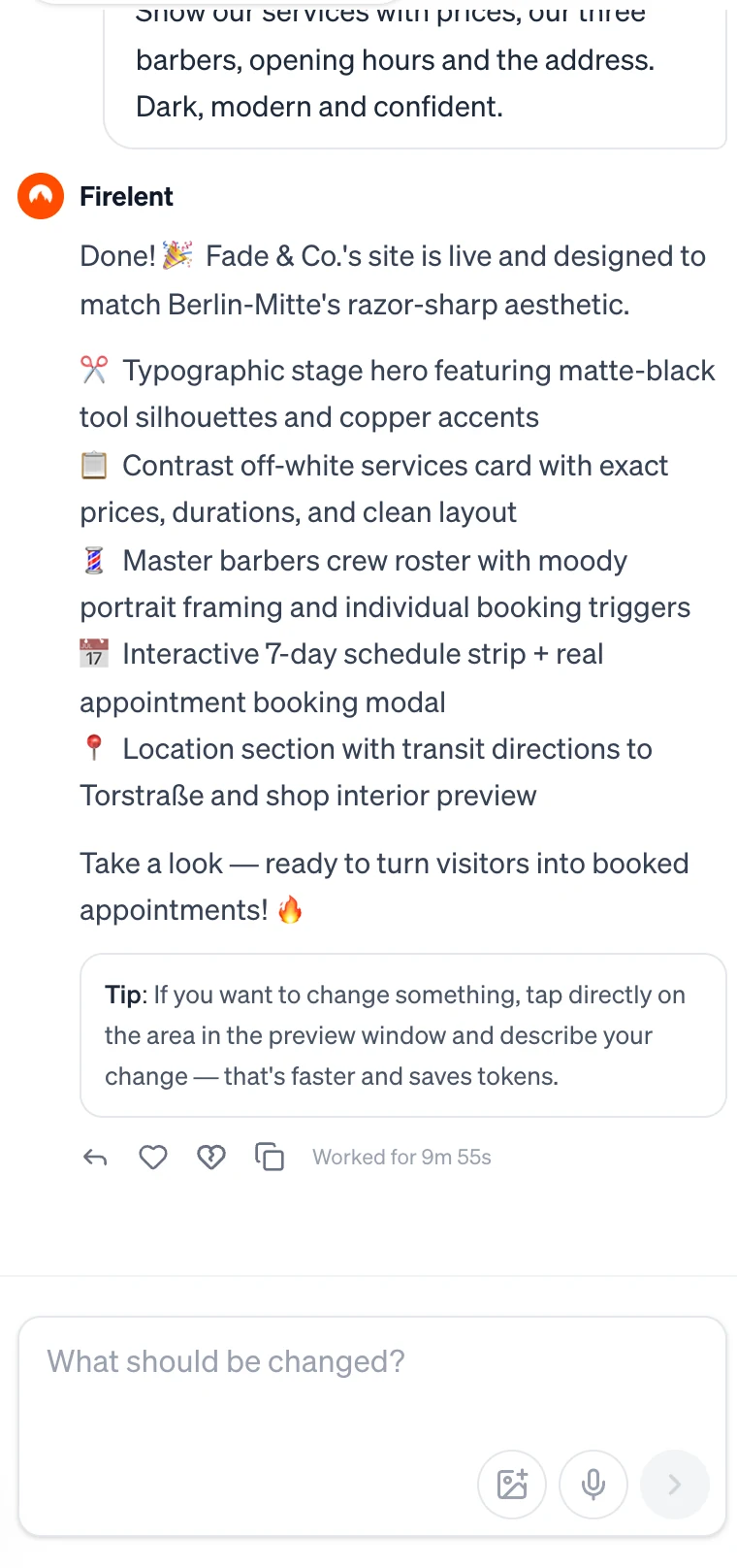
Send a message#
Type into What should be changed? at the bottom of the chat and press Enter. Use ShiftEnter for a new line.
Firelent works on one message at a time. While it's busy, the message box waits and the send button shows a spinner; as soon as the work is done, you can send the next one.
What happens to your message#
Before anything runs, Firelent reads your message and decides what it is:
- A question — “what does SEO mean?”, “which colours suit a bakery?” — gets an answer in the chat. Answers are free.
- A change to your project — “add a section with our opening hours” — is built into your site. A change costs 2 credits.
- A request for a file — “make me a one-page flyer as a PDF” — creates that file. See what files cost.
So you can talk to Firelent freely: asking, discussing and planning never use credits — only the work does.
Ask for changes#
The clearer the request, the better the result. A few habits that help:
- Say where. “In the hero”, “in the footer”, “on the services section”.
- Say what you want, not just what's wrong. “Make the headline shorter and add a ‘Book now’ button under it” beats “the top looks off”.
- One idea per message. Several small, clear changes land better than one long list.
- Show it. Attach a screenshot of something you like, or of the spot you mean.
Attach images#
Click the image button in the message box, or paste a screenshot straight in. You can attach up to 10 images per message — JPEG, PNG, WebP or GIF. Large photos are resized automatically before they're sent.
Every message needs some text, so say what Firelent should do with the images: “use this as the hero photo”, “match the style of this screenshot”.
Edit straight from the preview#
For a change to one specific spot, you don't need to describe where it is — just point at it.
Hover the part you want to change
In the preview, move your pointer over your site. Firelent outlines the text, image or section under it in orange.
Click it
A small panel opens at the bottom of the preview, showing what you picked.
Describe the change
Write what should change — “make this shorter and catchier” — and send it. Firelent changes only that part of your site.
A quick edit like this costs 1 credit, and it appears in the chat like any other message.
Swap an image#
Hover an image in the preview and choose to change it. Firelent opens an image search with suggestions that fit the section — type to search for something else, then pick a photo. It replaces the old one straight away, without any AI work, for 1 credit. Photos come from Unsplash.
Adjust your logo#
Hover your logo in the preview to resize it with a slider, live, then apply. This is free. See Branding.
While Firelent works#
When you start a new build, Firelent first replies with a short note on what it's about to make. Underneath, a live activity log shows what it's doing right now — Thinking…, the individual files it's editing — with the last few finished steps listed below.
When the work is done, the log folds into a single line such as Worked for 3m 12s. Click it to see every step again.
Replies and their actions#
Hover a reply to see what each action does:
- Reply — answer this specific message. A banner above the message box shows what you're replying to; click its × to cancel.
- Helpful and Not helpful — rate the reply. Click again to undo.
- Copy — copy the reply's text.
When your site is live and you've changed something since publishing, the latest reply also shows Publish change, so you can put the update live right from the chat.
Suggestions#
Sometimes a reply comes with a suggestion chip under it — for example Check domain availability when Firelent recommends securing a domain. Click it to act on the suggestion without leaving the chat.
Files in the chat#
When Firelent creates something for you, it lands in the chat:
- Images appear right in the conversation. Click one to view it large, with Download and Info (the prompt, file name and size).
- Other files — slides, documents, spreadsheets, audio — appear as cards with the file type and size. Click a card to download the file.
Every file is also kept in your Library.
Plan before you build#
Plan mode lets Firelent think a project through with you before building anything. Start it from a New Window tab: open the + menu in the message box and choose Plan, or press ⌘P.
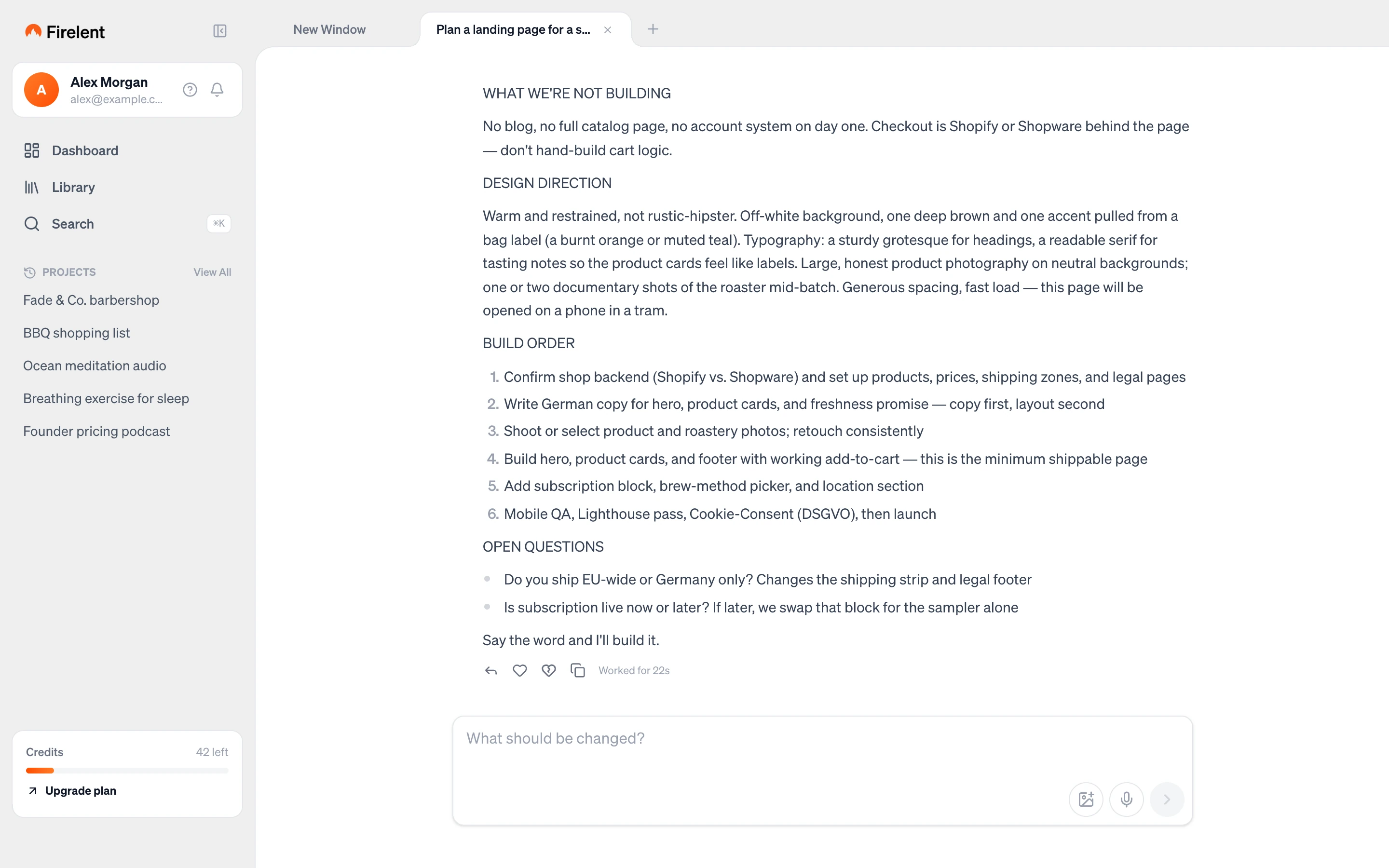
Firelent replies with a plan — what to build, the design direction, the order to build it in and any open questions — sometimes with a checklist of next steps you can tick off. Planning is free. When you're happy, reply with something like “build it”, and Firelent builds it (40 credits for a new website).
Credits#
Credits are taken when a piece of work starts. If it fails on our side, they're refunded automatically — you'll see the refund in your history under Billing. If you don't have enough credits for a request, Firelent tells you before it starts, and nothing is charged.
| Action | Credits |
|---|---|
| Questions, answers and plans | Free |
| A change via the chat | 2 |
| A quick edit in the preview, or an image swap | 1 |
| A new website or app | 40 |
Chat history#
Your whole conversation stays with the project. The newest messages load first; scroll up to load older ones. Long messages are shortened with Show more.
Point at your code#
From the Code Editor, you can drop a reference to a file — or a single line — into the message box, then describe what should change there.