
Build / Publishing
Build/Projects/Project settings
Publishing
Put your website live, update it, pause it or take it offline.
Publishing puts your website on the internet. One click takes it live on its own firelent.app address; you can update it, pause it or take it down whenever you like — and publish to your own Vercel account instead, if you prefer.
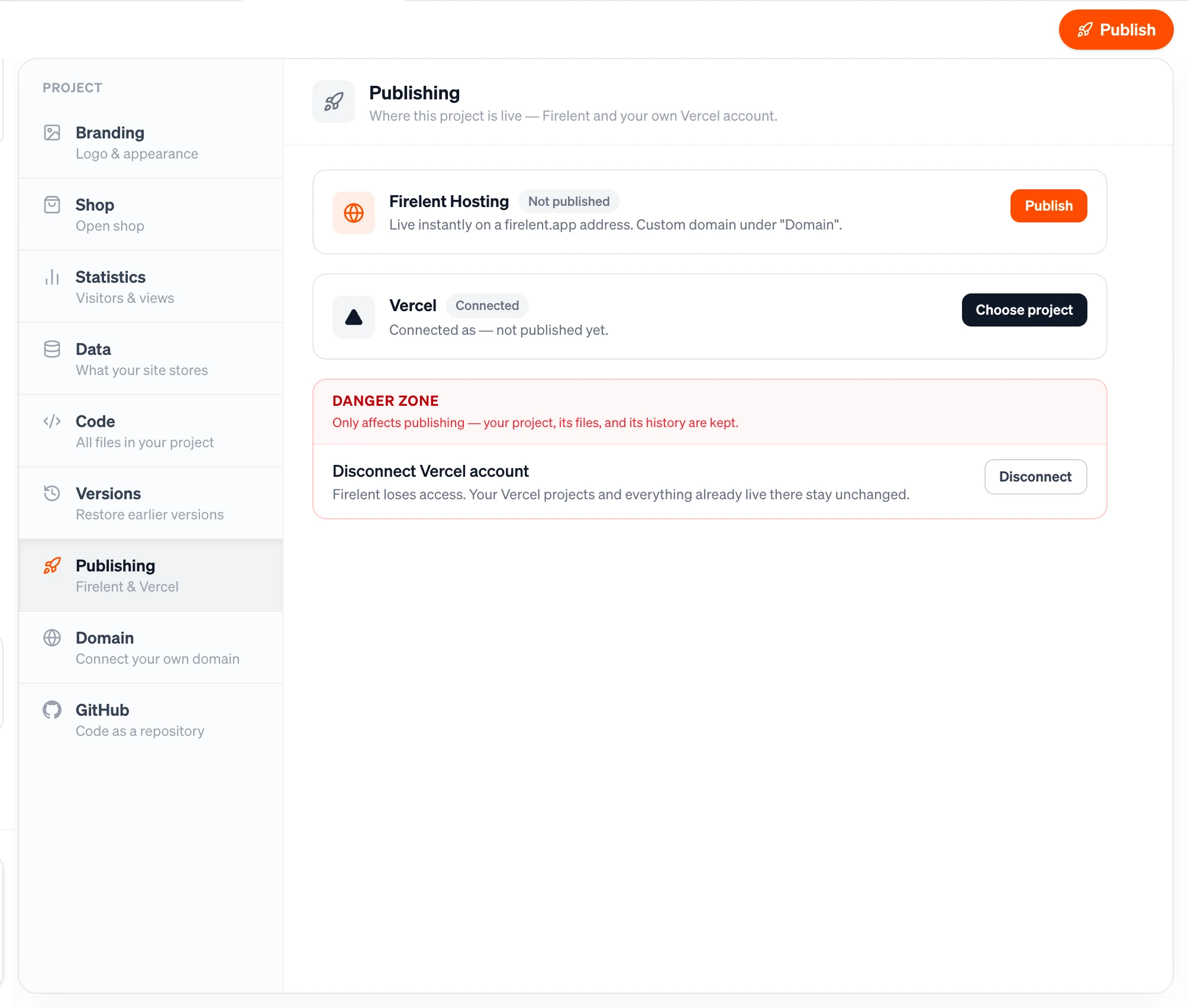
You publish from the Publish button in the top right of the editor, and manage everything about it in Project tab → Publishing. Publishing is available for websites.
Publish your site#
Click Publish
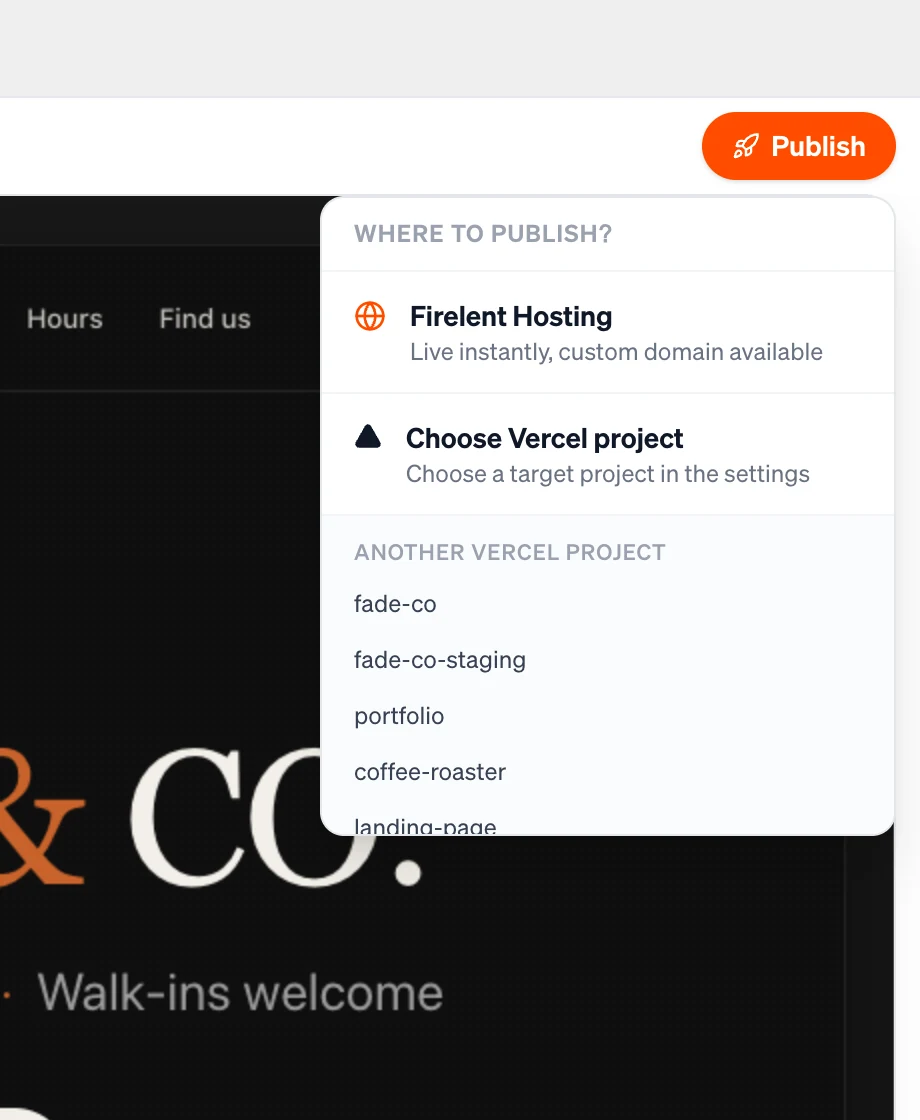
Click Publish in the top right of the editor. Where to publish? opens.
Choose Firelent Hosting
Firelent Hosting — “Live instantly, custom domain available” — publishes your site on its own address. It takes a few seconds.
Open or share it
When it's live, the publish menu shows your address with Open, Copy link and Republish.
Publishing is free — it doesn't use credits.
Your address#
Your site lives at https://your-site.firelent.app, with the address based on your project's name. It stays the same every time you publish. Want your own domain instead? See Domain.
Update your live site#
When you change your site after publishing, the button switches to Publish changes. Click it and choose Update on Firelent — your live site is replaced with the latest version of your project. You can also click Update in Project → Publishing, or Publish change under the latest reply in the chat.
After an update, give it about half a minute before you check: the new version reaches visitors everywhere within roughly 30 seconds.
The Publishing section#
Project → Publishing shows the state of your live site at a glance:
| Status | What it means |
|---|---|
| Not published | Your site isn't online yet. Click Publish to put it live |
| Live | Your site is online. Click Update to publish your latest changes |
| Paused | Your address is reserved, and visitors see a notice instead of your site |
Pause your site#
Need to take your site offline for a while? Under Danger zone, click Pause publishing. Your address stays reserved for you, and visitors see a short notice saying the site is temporarily unavailable — search engines are told not to index it in the meantime.
Click Resume to bring it back. Resuming publishes the current version of your project.
Remove your site#
To take your site down for good, click Remove under Danger zone, then Yes, remove to confirm. Your address is freed and can be taken by another project; visitors see a page saying the site is no longer published.
Removing only affects publishing — your project, its files and its history are kept, and you can publish again any time.
Publish to your own Vercel account#
You can also publish your site to your own Vercel account. Your site then runs on your Vercel account, under your control.
Connect Vercel
In Where to publish?, click Connect Vercel and approve Firelent in Vercel. You come back to Project → Publishing. The connection belongs to your Firelent account, so it works for all your projects.
Choose a Vercel project
Pick an existing project under Which Vercel project?, or enter a name under Create a new project and click Create.
Publish
Click Publish to Vercel. Firelent uploads your site and Vercel puts it live — the Publishing section shows each step as it happens.
To stop, click Disconnect Vercel account. Firelent loses access, and your Vercel projects — and everything already live there — stay exactly as they are.
Your business details#
After your first build, Firelent asks for a few details your website should show: your phone number, address, opening hours, logo and Impressum. Click Let's go to fill them in step by step, or Later to come back to them.
- Phone, address and opening hours appear on your site where visitors expect them.
- Logo — see Branding.
- Impressum — the legal notice German websites need. Choose your legal form — Einzelunternehmen, e.K., GbR, OHG, KG, GmbH or UG (haftungsbeschränkt) — fill in your company details, and click Create Impressum. It's generated from your answers, without AI.
Saving these details never costs credits. Publish again to put them live.
Publishing an imported project#
Imported projects that are plain HTML sites — with an index.html in the top folder — publish to Firelent Hosting just like a website built with Firelent.