
Create / Presentations
Create
Presentations
Take your deck from Firelent to the room: open it, add notes, present and share.
Firelent gives you a real PowerPoint file, so everything you know about presenting still works. This page takes your deck from the download to the room: opening it in your app, making it yours, rehearsing and presenting — in person or online.
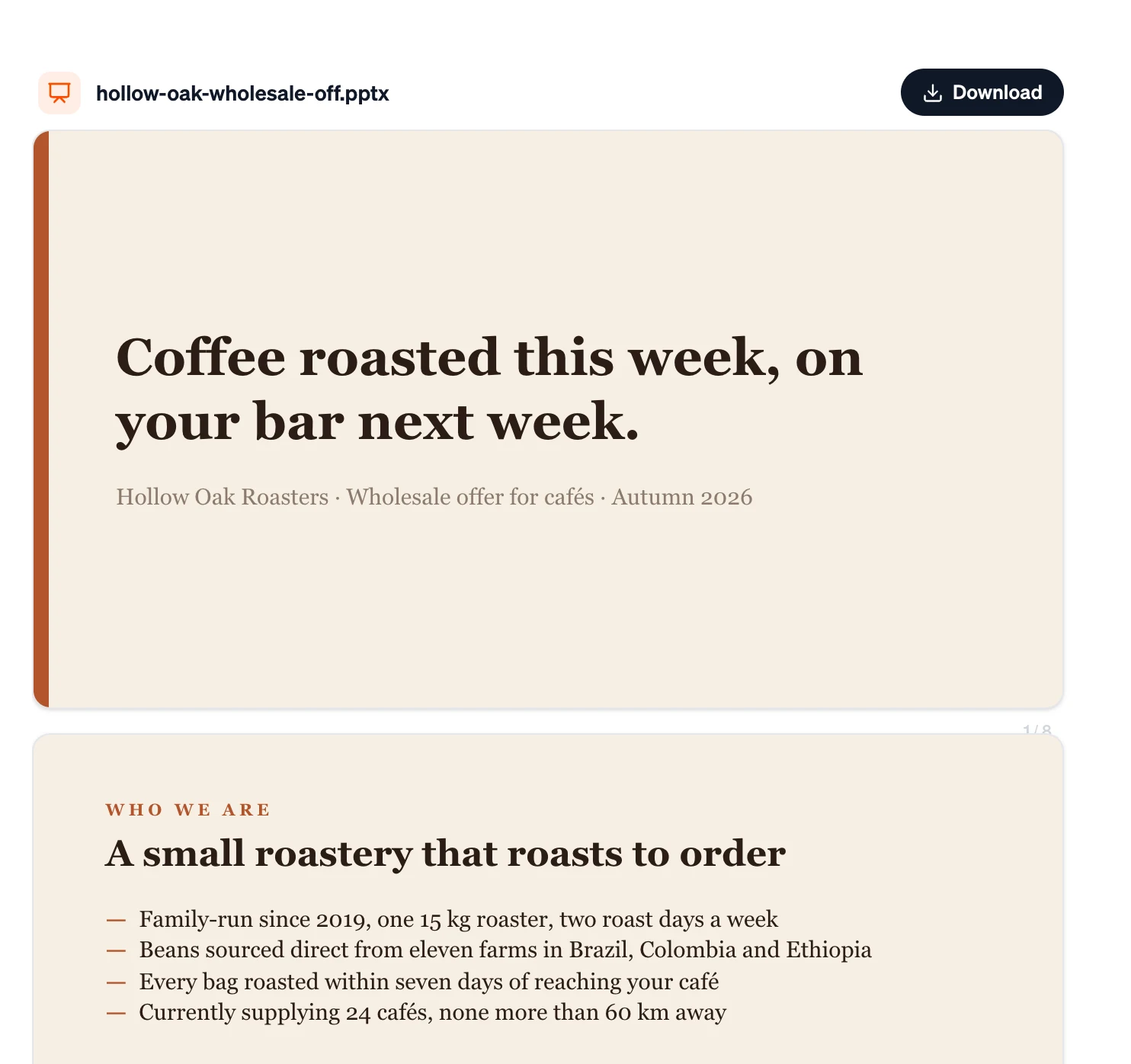
Download your deck#
- In the chat: click the file under Firelent's reply.
- In the preview: click Download above the slides.
- Later: open Library in the sidebar, filter by Slides and download it from there.
The preview is there to check the content and the look. To present, open the file in your presentation app.
Open it in your app#
| App | How to open it |
|---|---|
| PowerPoint | Double-click the file. |
| Keynote | Open Keynote and choose the file, or drag it onto the Keynote icon — double-clicking opens PowerPoint if it's installed. |
| Google Slides | Upload it to Google Drive and open it with Google Slides. |
Check the font#
Your deck uses one font, picked to match your description. If the computer you present from doesn't have it, your app swaps in another font and text can shift — Keynote warns you about missing fonts, Google Slides replaces them quietly.
If you'll present from another computer, ask for a common font when you create the deck — for example, “use Arial”. Then click through every slide once on the computer you'll actually present from.
Make it yours#
Your deck is text-first. Before presenting, add what only you have:
- Your logo and photos — real photos of your product, team or place beat anything generic.
- Charts for your key numbers, made in your presentation app so you can edit them.
- Your template, if your company has one — apply it in PowerPoint or Keynote.
- Speaker notes — Firelent decks don't include notes yet. Add them in the notes field under each slide: short cues, not a script.
Rehearse#
- Say it out loud, at least twice. Most people speak about 130 to 150 words per minute — time yourself.
- Plan one to two minutes per slide. A 20-minute slot fits about 10 to 15 slides, with time left for questions.
- Keep it short. Twenty minutes is plenty for most talks; leave the rest of the hour for discussion.
- Use your app's coach. PowerPoint's Rehearse with Coach listens to your pace and filler words; Keynote can rehearse a slideshow with a timer.
Present#
| Situation | What to use |
|---|---|
| In a room, with a second screen | Presenter View: the audience sees the slide, you see your notes, the next slide and a timer. In PowerPoint, start the slide show with Use Presenter View turned on; Keynote and Google Slides have their own presenter display. |
| Online, one screen | Share only the slideshow window, not your whole screen, so your notes stay private. |
| No time to set up | Export a PDF and present it full screen — it looks the same on every computer. |
Share it afterwards#
- As a PDF: in PowerPoint, Keynote or Google Slides, export or download the deck as PDF. Fonts and layout stay exactly as you saw them.
- As a handout: PowerPoint can print notes pages, with each slide and its notes on one page.
- As the original: send the
.pptxif people need to edit it.
Before you present#
- Every number, name and date is checked — Firelent fills gaps with examples
- Your logo, photos and real charts are in
- Fonts look right on the computer you'll present from
- Notes are written for every slide you need them on
- You've rehearsed out loud and know your timing
- A PDF copy is saved, just in case
FAQ#
Can I present straight from Firelent?#
Not yet. The preview is for checking your deck — present from PowerPoint, Keynote or Google Slides.
Can I share a link to my deck?#
Not yet. Send the file or a PDF export.
Can Firelent write my speaker notes?#
Not as part of the deck yet. Add your notes in your presentation app.