
Getting started / Workspace overview
Getting started
Workspace overview
A tour of the studio: projects, chats, previews, the library and settings.
Everything you do in Firelent happens in one workspace: a sidebar on the left, browser-style tabs along the top, and your projects in between. This page walks through each part.
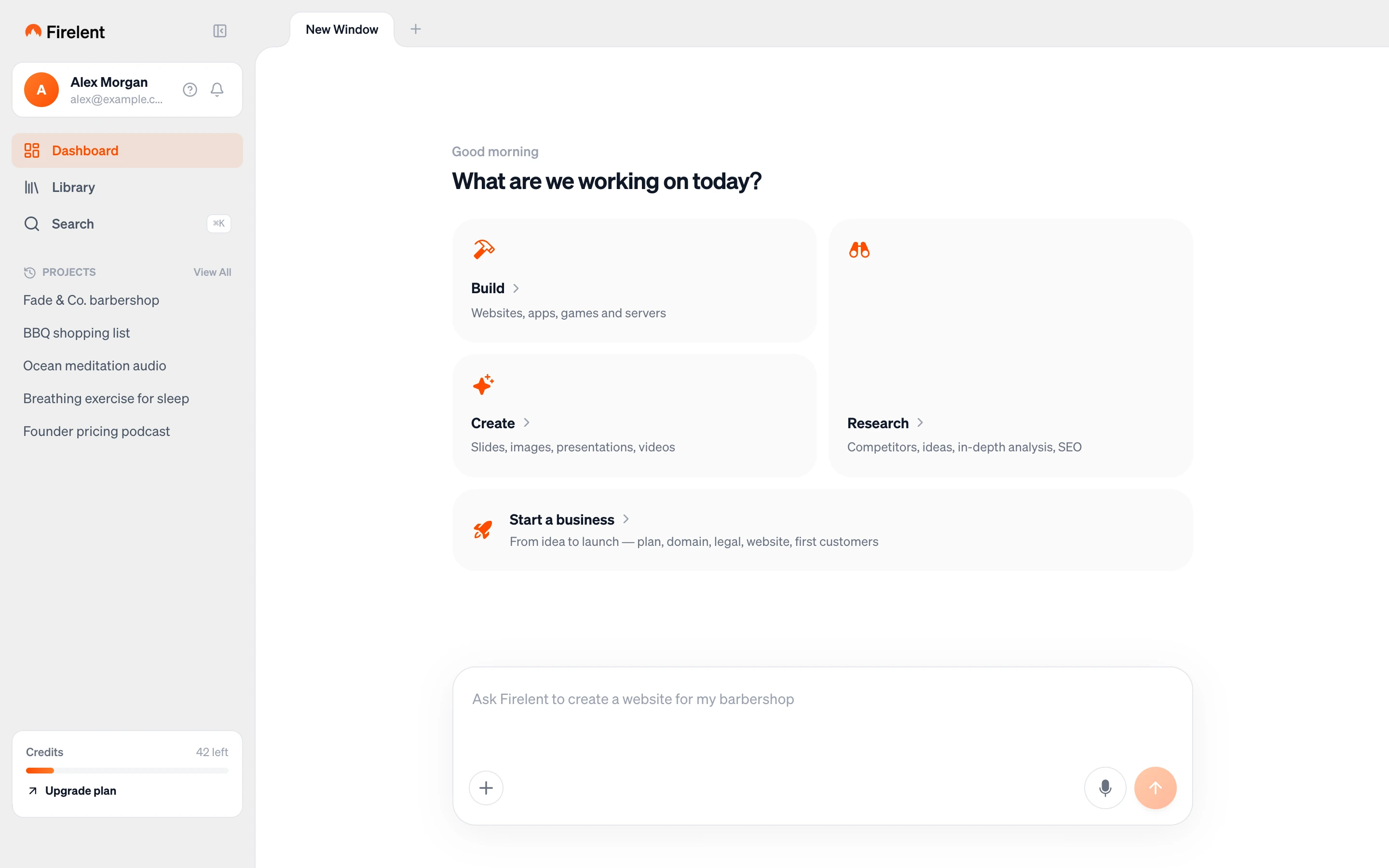
The sidebar#
The sidebar is always there, whichever project you're in.
- Dashboard — your starting point for anything new.
- Library — every file Firelent has created for you, across all your chats.
- Search — find a project by name. Open it from anywhere with ⌘K.
- Projects — your most recent projects. View All opens the full list.
- Credits — your balance, the days until your next credits arrive, and Upgrade plan.
Tabs#
Firelent works like a browser. Every project you open gets its own tab along the top, next to New Window, so you can jump between a website, an app and a slide deck without losing your place. Close a tab with its ×; the project itself stays safe.
The dashboard#
The dashboard asks one question — What are we working on today? — and gives you three ways in:
- Build — websites and native apps. Choose Mobile app to start an app project.
- Create — slides, documents, spreadsheets, images and audio.
- Research — ask about competitors, ideas, SEO or anything else, and get an in-depth answer.
Or skip the tiles and type straight into the composer at the bottom. Open the + menu to switch to Plan mode, or press ⌘P.
Inside a project#
A project is a chat and the thing you're building, side by side.
The chat#
The chat holds your whole conversation with Firelent: your prompts, its replies, plans, the live activity log while it builds, and cards for every file it creates. Write your next change in What should be changed? at the bottom. You can attach up to 10 images to a message.
Asking questions in the chat is always free — only builds and changes use credits.
Preview and Project#
On the right, two tabs switch between your work and its settings:
- Preview shows the live website — or, for an app, a QR code to open it on your iPhone.
- Project holds everything else about the project, in sections.
Project sections#
| Section | What it does |
|---|---|
| Branding | Upload your logo (PNG, JPEG, SVG or GIF, up to 2 MB) and set its size |
| Shop | Websites only. Open a shop with up to five products, then Enable orders to accept card payments through Stripe |
| Orders | Appears once you have a shop. New orders are sent to you on Telegram |
| Statistics | Websites only. Cookieless visitor statistics for 7, 30 or 90 days, starting from your first publish |
| Data | The records your site or app stores, and its users. Export everything as JSON or SQL |
| Code | Browse your project's files, download any of them, or reference a file or line in the chat |
| Versions | Every change, backed up automatically. Revert to any earlier version for free |
| Publishing | Your live address. Pause publishing or remove the site from Firelent Hosting |
| Domain | Websites only. Connect your own domain, with SSL set up automatically |
| GitHub | Link the project to a private repository in your own GitHub account |
Shop payments
Shop payments run through Stripe. Firelent keeps a 1% fee on each order.
Library#
The Library collects every file Firelent has created — images, documents, slides, spreadsheets and audio — from all your chats, in one place.
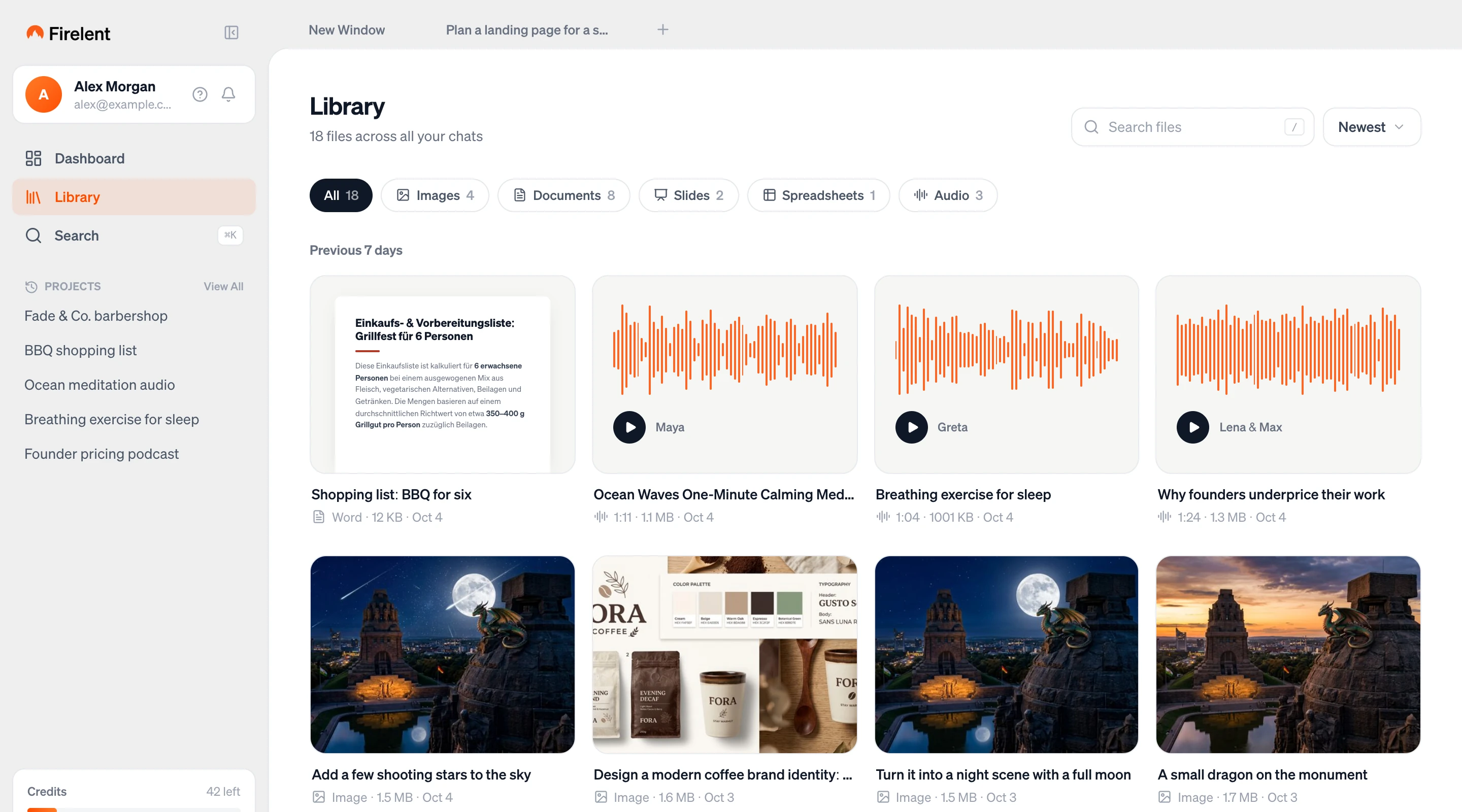
- Filter by type: Images, Documents, Slides, Spreadsheets or Audio.
- Sort by Newest, Oldest, Name A–Z or Largest.
- Search your files by name — press / to jump to the search field.
- Each file card lets you Download it, Preview it without leaving the page, or Open chat to go back to the conversation that made it.
All projects#
View All in the sidebar opens your full project list. From there you can start a New project, Rename or Delete one, or Import an existing project:
- From GitHub — pick a repository and a branch.
- By upload — choose a folder from your computer. Dependency folders, build output and
.envfiles are skipped.
Firelent recognises static sites as well as Vite, Next.js and Create React App projects.
GitHub#
Open Project, then GitHub, and click Link with GitHub. Firelent creates a private repository in your own GitHub account and pushes your project to it. From then on, every build is committed automatically, with your prompt as the commit message — so your project history lives in your own account.
Credits and billing#
The Billing page shows:
- Available credits — your current balance and plan.
- What do actions cost? — the price of each action in credits.
- History — every charge and every automatic refund.
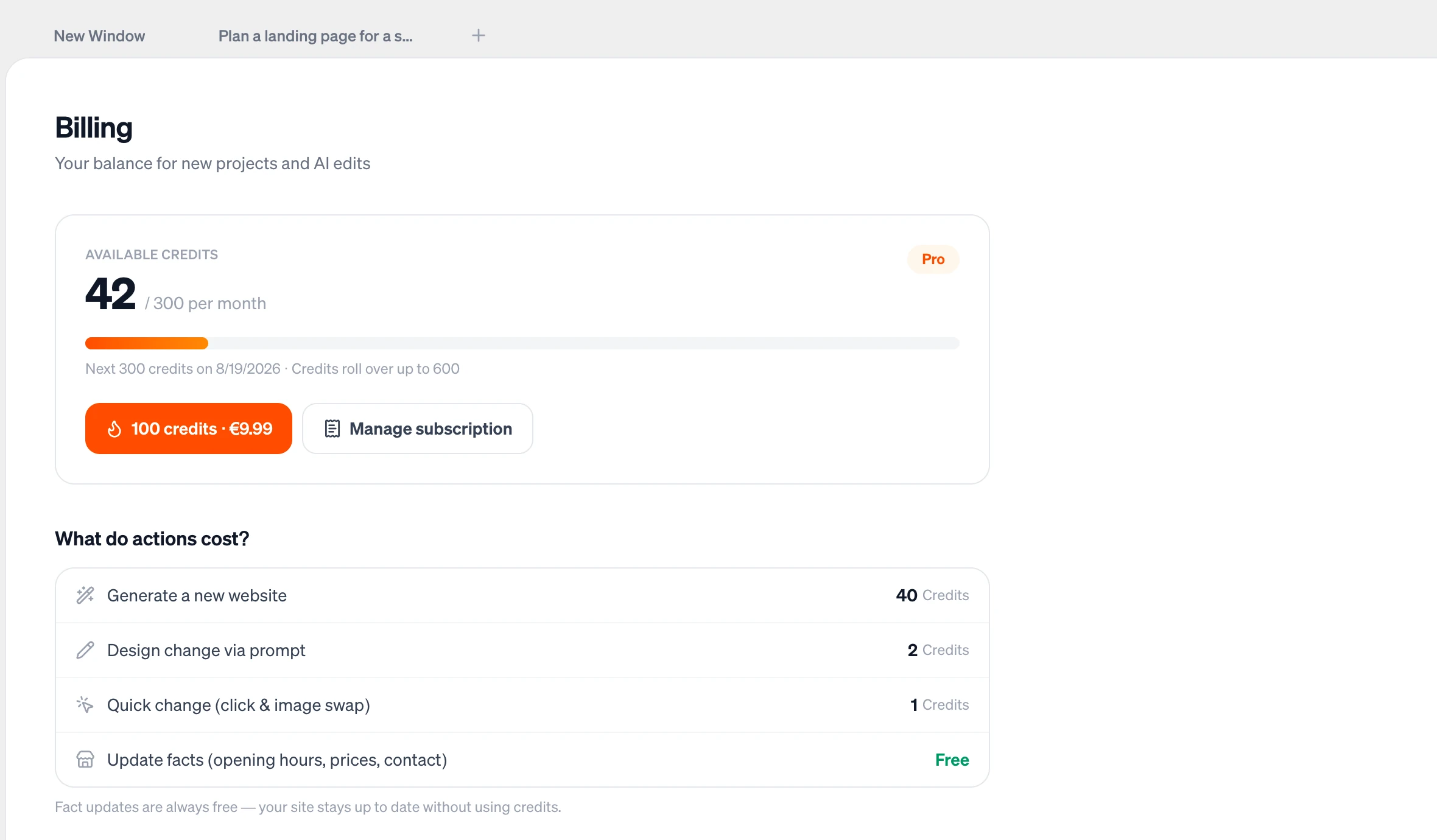
From here you can upgrade with Go Pro · €30/month, buy 100 credits · €9.99 on Pro, or open Manage subscription to change or cancel your plan.