
Build / Mobile apps
Build
Mobile apps
Build native iPhone apps from a prompt and run them live on your phone.
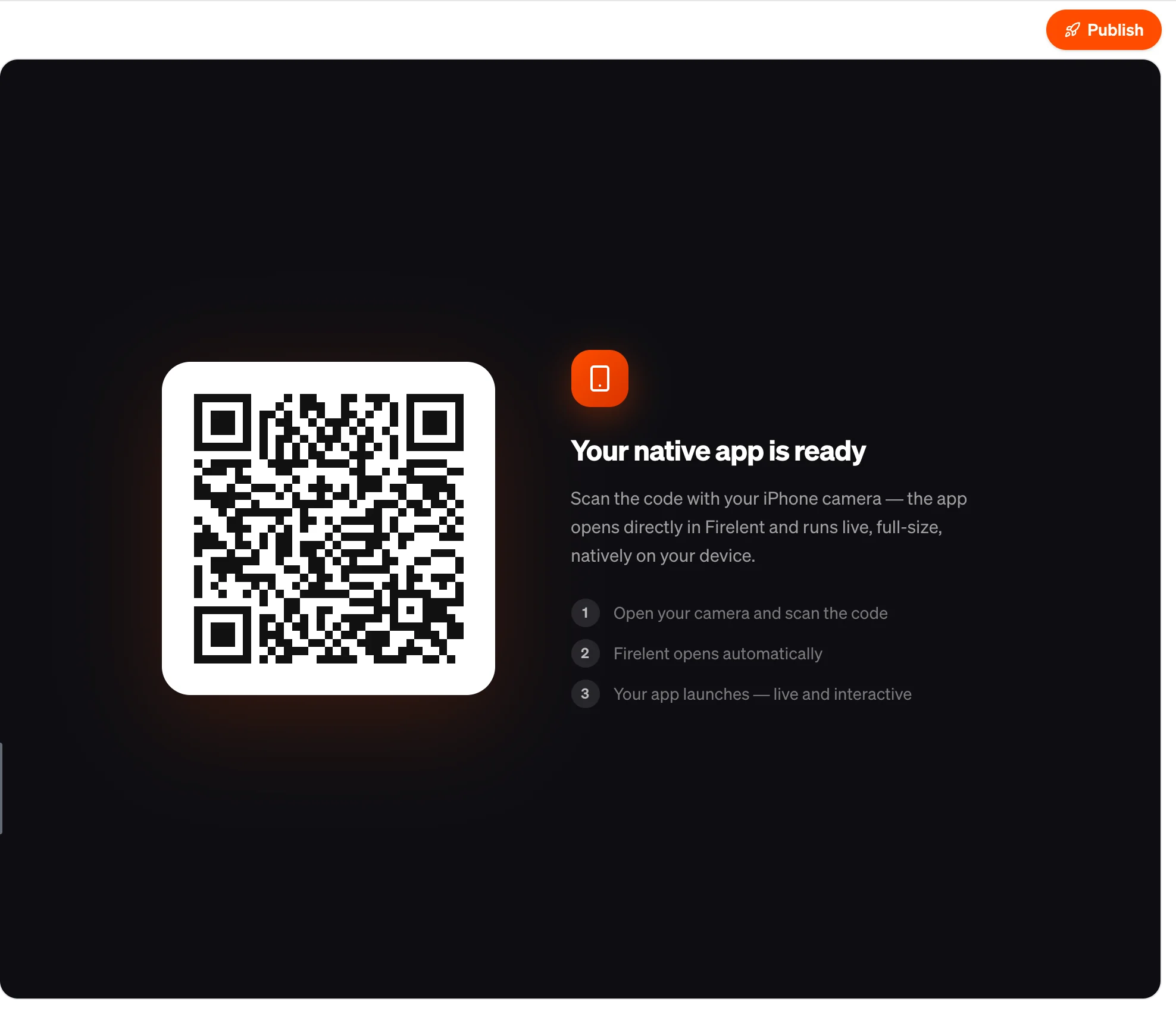
Describe an app and Firelent builds it as a real native iPhone app — not a website squeezed onto a phone. You scan a QR code, it opens on your iPhone, and you keep shaping it in the chat while it runs live in your hand.
What you can build#
Apps are at their best when they use the phone itself — the camera, your location, a quick tap on the go:
- Habit and fitness trackers — log a workout or a glass of water in two taps, offline.
- Field tools — snap a photo at a job site, note where it was taken.
- Local guides — places on a map, with directions from where you are.
- Recipe, reading and collection apps — your lists, beautifully laid out, always with you.
- Utilities — timers, calculators, splitters and converters with satisfying haptics.
How it works#
Start an app from the homepage by choosing App, or from the dashboard with Build → Mobile app, and describe what it should do.
Firelent builds it
Your app is built with React Native — the same technology many apps in the App Store use — so it has native screens, gestures and animations.
Scan the QR code
The Preview tab shows a QR code. Scan it with your iPhone camera and the app opens in the Firelent app.
Keep building
Ask for changes in the chat. Each change is built and sent to your phone, so you can try it right away.
While Firelent builds, your iPhone shows the progress on the lock screen and in the Dynamic Island, so you can put the phone down and wait.
If your app crashes#
When an app hits an error while you're testing it, the Firelent app reports it, Firelent repairs it and the app reloads — up to two attempts, automatically and free. You'll see the fix in the chat.
What your app can use#
| Feature | For example |
|---|---|
| Camera | Take a photo of a receipt, a plant or a delivery |
| Location | Show where you are, find what's nearby |
| Maps | Places on a map, with markers you can tap |
| Haptics | A satisfying tap when you tick something off |
| Video | Play clips inside your app |
| Animations and gestures | Swipe, drag and spring between screens |
| Storage on the phone | Keep data on the device, even without internet |
| Data and accounts | Save data with Firelent Cloud and let people sign in with email |
Plan your app#
The best first versions are small. Before your first prompt, decide:
- The main flow — the one thing people do most. For a dog-walking app: see today's walks → start the timer → snap a photo → done.
- Three to five screens — usually with a tab bar at the bottom.
- How it should feel — calm or energetic, playful or serious. Mention a colour palette if you have one.
- One hand or two? Most phone use is one-handed. Ask for big tap targets near the bottom.
Build an iPhone app called Walkly for freelance dog walkers. Main flow: see today's walks → start a walk timer → take a photo at pickup → mark the walk done. Four screens with a bottom tab bar: Today, Walks, Dogs, Settings. One-handed use, big tap targets, a calm green palette, gentle haptics when a walk is done. Keep walks on the phone so it works offline.
Test it on your phone#
Your phone shows you things a desktop never will. Each time you try a new version, check:
- Tap targets — can you hit every button with your thumb, without zooming?
- The keyboard — does it cover the field you're typing in?
- Permissions — does the camera or location request explain why it's needed?
- Offline — switch on airplane mode. Does the app still make sense?
- Real content — long names, empty lists, many items. Does anything break?
When something feels off, describe the feeling: “the list jumps when I scroll” or “the button is hard to reach” gives Firelent exactly what it needs.
Make it better#
- Ask for motion and polish. “Add a gentle fade-in on the home screen and a spring when cards appear” turns a working app into a pleasant one.
- One change at a time. Small, clear requests keep the parts that already work intact.
- Use what the phone is good at. A photo instead of a text field, the location instead of an address form, a haptic instead of a pop-up.
- Go back when needed. Every change is a version you can return to for free.
What's not available yet#
Your app runs inside the Firelent app on your iPhone. The following are not available yet:
- publishing your app under its own name in the App Store or Google Play;
- Android phones;
- push notifications;
- choosing photos from the photo library;
- sign-in with Apple or Google.
FAQ#
Do I need an Apple developer account?#
No. Your app runs inside the Firelent app, so there's nothing to sign up for to build and test it.
Can my app save data online?#
Yes — with Firelent Cloud, the same backend web apps use. Your app can save entries and let people sign in with their email. See Servers.