
Build / Editor
Build/Projects
Editor
Find your way around the project editor: the chat, the preview, the tabs and every control in between.
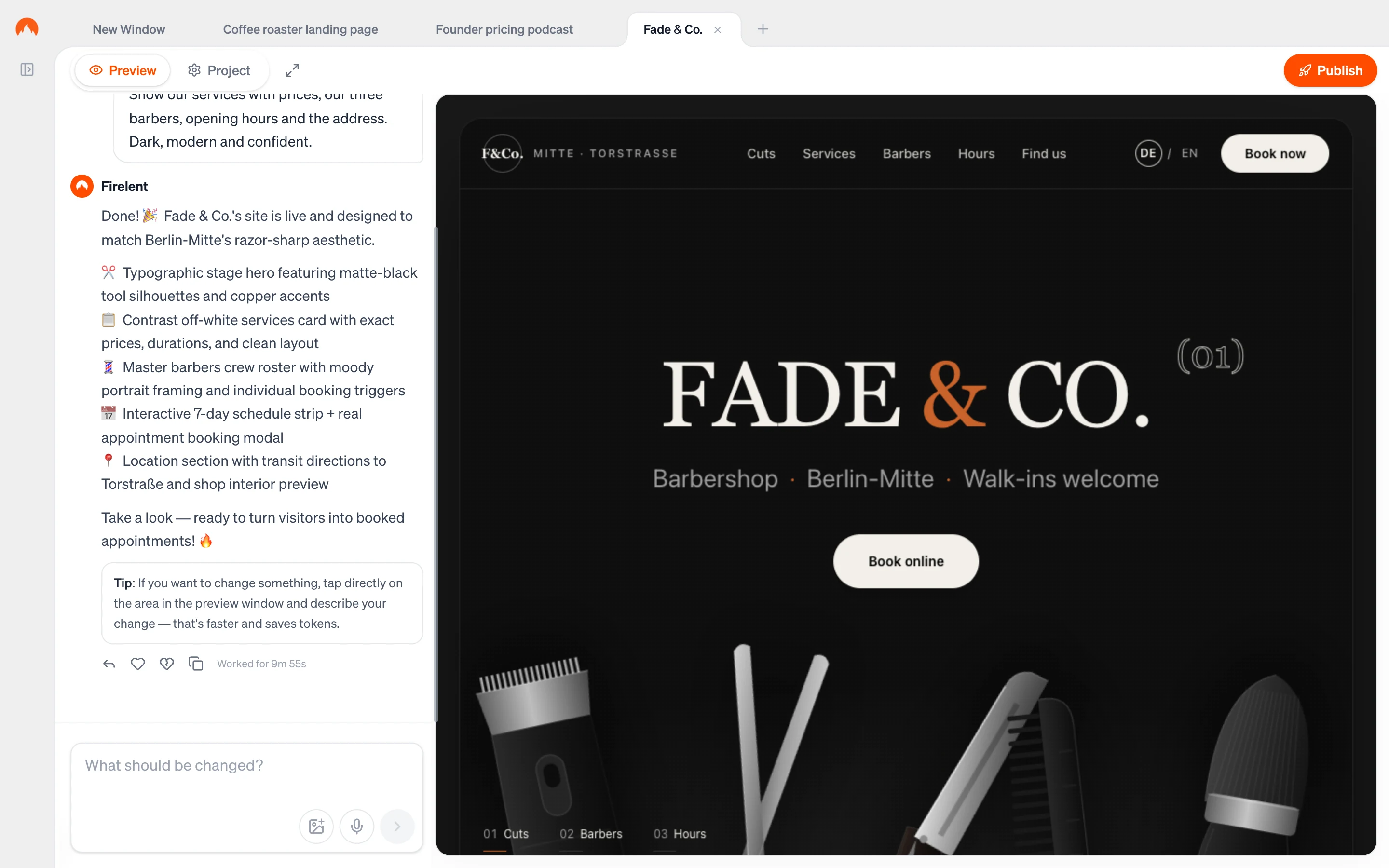
Opening a project takes you to the editor. This is where you build: you describe what you want in the chat on the left, and you watch your site take shape in the preview on the right. Everything else — your project's settings, its code, its versions and publishing — is one click away in the top bar.
This page is a map of the editor, so you always know where to find things.
Two layouts#
A project opens in one of two layouts, and Firelent picks the right one for you.
- Chat — while there's nothing to preview yet, the project is a single conversation in the middle of the screen, with the full sidebar next to it. This is how a website project starts: your first prompt, Firelent's reply and the live activity log while it builds. Plans, questions and research stay in this layout too. If the chat creates a file — slides, a document, a spreadsheet or audio — a file pane opens on the right so you can look through it.
- Editor — as soon as your website is built, the project switches to the full editor: the sidebar folds into a slim rail, the top bar appears, and the chat moves to the left of your preview. App projects and imported projects always open in the editor.
The two main areas#
- Chat (left) — where you tell Firelent what to build or change, and follow its progress. See Chat.
- Preview and Project (right) — your live site, or your project's settings, depending on the tab you choose in the top bar. See Preview and Project settings.
Sidebar#
In the editor, the studio sidebar folds into a slim rail on the left to give your project the room. Click the expand button in the rail to bring it back — with Dashboard, Library, Search, your recent projects and your credits — and the collapse button to fold it away again. See Workspace overview for everything in it.
Tabs#
Above the editor runs a strip of browser-style tabs: one for each project you have open, plus New Window tabs for starting something new. Click a tab to switch, and its × to close it. See Windows.
Top bar#
The top bar sits above the preview and holds three controls.
Preview and Project#
The switch on the left of the top bar chooses what the right side of the editor shows:
- Preview — your website, running live. Click through it exactly as your visitors will, and click straight on a part of it to change it.
- Project — your project's settings, in sections: branding, shop, statistics, data, code, versions, publishing, domain and GitHub.
Preview in full screen#
The full-screen icon next to the switch hides the top bar and the chat, so your site fills the whole window. It's there while the Preview tab is open. Press Esc — or click the Firelent badge in the bottom-left corner, then Exit full screen — to come back.
Publish#
The Publish button on the far right puts your site live, and its label always tells you where things stand:
| Label | What it means |
|---|---|
| Publish | Your site isn't live yet |
| Publishing… | Firelent is putting it live right now |
| Published | Your live site is up to date |
| Publish changes | You've changed something since the last publish — click to update the live site |
| Error — try again | The last publish didn't go through |
While Firelent is building, the button waits until it's done. For websites, clicking it opens Where to publish?, where you choose Firelent Hosting or your own Vercel account. See Publishing.
Keyboard shortcuts#
| Shortcut | What it does |
|---|---|
| ⌘ K or Ctrl K | Search your projects, from anywhere in the studio |
| Enter | Send your message |
| Shift Enter | Start a new line in your message |
| Esc | Leave full screen, or close an open panel |
| ⌘ P or Ctrl P | Switch on Plan mode — on a New Window tab |
Search#
Press ⌘K or click Search in the sidebar to find a project by name. Each result shows whether the project is Live or still a Draft; click one to open it in a tab.
Where do I find…#
…my project's files?#
Open the Project tab and choose Code. See Code Editor.
…an earlier version of my site?#
Open the Project tab and choose Versions. Going back is free. See Versions.
…the link to my live site?#
Click Published in the top right, or open Project → Publishing. See Publishing.
…my logo?#
Open Project → Branding, or hover your logo in the preview. See Branding.
…another project?#
Click its tab, pick it from the sidebar's recent projects, or press ⌘K and type its name.