
Getting started / Quick start
Getting started
Quick start
Go from a single prompt to a live website in a few minutes.
This guide takes you from an empty dashboard to a published website. Plan on a few minutes for the first build, and a little longer if you want to fine-tune it.
Before you start#
- A Firelent account. If you don't have one yet, create an account first.
- 40 credits for a new website. New accounts start with 50, so you're covered.
Describe what you want#
The more Firelent knows, the closer the first version gets. A good first prompt covers:
- What it is — the business, product or project, and its name.
- Who it's for — your customers and what they come to do.
- What it needs — pages or sections, like opening hours, a menu, prices or a booking button.
- How it should feel — calm and premium, bold and playful, or whatever fits.
Build a website for Fade & Co., a barbershop in Berlin-Mitte. Walk-ins welcome, but most customers book online. Show our services with prices, our three barbers, opening hours and the address. Dark, modern and confident.
Send your prompt from the composer on the Firelent homepage after choosing Website, or from the composer on your dashboard. On the homepage composer you can also attach photos or your logo for Firelent to use.
Plan it first
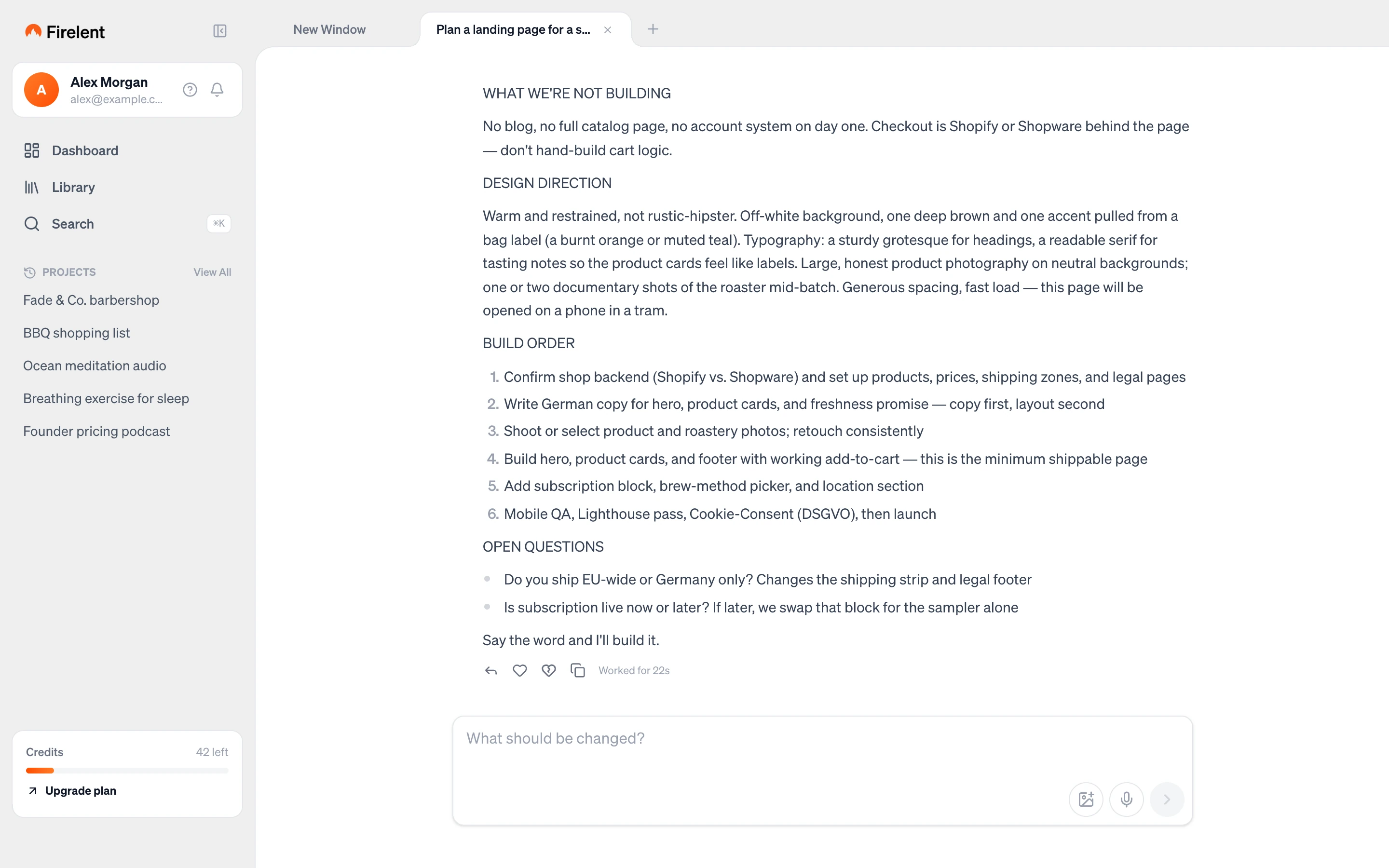
Not sure yet? Open the + menu in the dashboard composer and choose Plan, or press ⌘P. Firelent writes a plan — what to build, the design direction and open questions — without building anything. Plan mode is free, and you can say the word to build it when you're happy.
Watch it build#
As soon as you send your prompt, Firelent replies with a short note on what it's going to build and gets to work. A live activity log under the reply shows each step as it happens — from Thinking… to the individual files being edited. When it's done, the log folds away into a single line that shows how long the build took.
A new website usually takes a few minutes. Changes afterwards are much faster.
Preview your site#
Your website appears in the Preview tab next to the chat. It loads instantly from a snapshot of the latest version, then switches to the live preview.
- Open it full screen with Preview in full screen, the icon next to the Preview and Project tabs. Press Esc to leave full screen.
Make changes#
Ask for anything in the chat box (What should be changed?) — new sections, different colours, rewritten text. Be specific: “make the hero headline shorter and add a ‘Book now’ button under it” works better than “make it better”.
There are three ways to change your site:
| How | Best for | Credits |
|---|---|---|
| Write in the chat | Anything, from small tweaks to new pages | 2 |
| Click an area in the preview, then describe the change | Quick changes to one specific spot | 1 |
| Swap an image | Replacing a photo | 1 |
You can also attach up to 10 images to a message — screenshots, photos or anything you want Firelent to look at.
Every change is a version
Firelent backs up every change automatically. To undo one, open the Project tab, go to Versions and click Revert on the version you want back. Reverting is free.
Publish#
Click Publish
Choose Firelent Hosting under “Where to publish?”. Your site goes live instantly.
Share your link
Your site is live at https://your-site.firelent.app, with the address based on your project name. Use Open to visit it and Copy link to share it.
After further changes, the button reads Publish changes — one click updates the live site.
Your business details
After your first build, Firelent asks for the basics your site should show: phone number, address, opening hours, logo and Impressum. Fill them in or skip them for later — saving them never costs credits. For the Impressum, pick your legal form and click Create Impressum; it's generated from your details without AI.
Add your own domain#
Once your site is published, you can put it on your own domain:
- Open the Project tab and go to Domain.
- Choose Connect a domain and enter your domain.
- Add the records Firelent shows you at your domain provider.
Firelent sets up the SSL certificate automatically, so your site is served securely over HTTPS as soon as the records are in place.
What it costs#
| Action | Credits |
|---|---|
| Build a new website or app | 40 |
| Change it via the chat | 2 |
| Quick change (click in the preview or swap an image) | 1 |
| Create slides | 15 |
| Create a document or spreadsheet | 2 |
| Create an image | 3 |
| Create audio | 1 per started minute, at least 3 |
| Chat, questions and Plan mode | Free |
| Revert to an earlier version | Free |
| Update business details | Free |
Credits are reserved when a job starts. If it fails on our side, they're refunded automatically — you'll see the refund in your credit history under Billing.
Building an app instead#
Choose App on the homepage composer — or Build, then Mobile app, on your dashboard — and describe your app the same way.
App projects don't have a browser preview. Instead, the Preview tab shows a QR code: scan it with your iPhone camera and the app opens live in the Firelent app on your phone. On iPhone, the build progress also appears as a Live Activity on your lock screen.