
Build / Versions
Build/Projects/Project settings
Versions
Every change backed up automatically — and how to go back to an earlier one.
Firelent backs up your project automatically, every time it builds or changes something. If a change doesn't work out, go back to any earlier version in a couple of clicks — for free.
Open it from your project: Project tab → Versions.
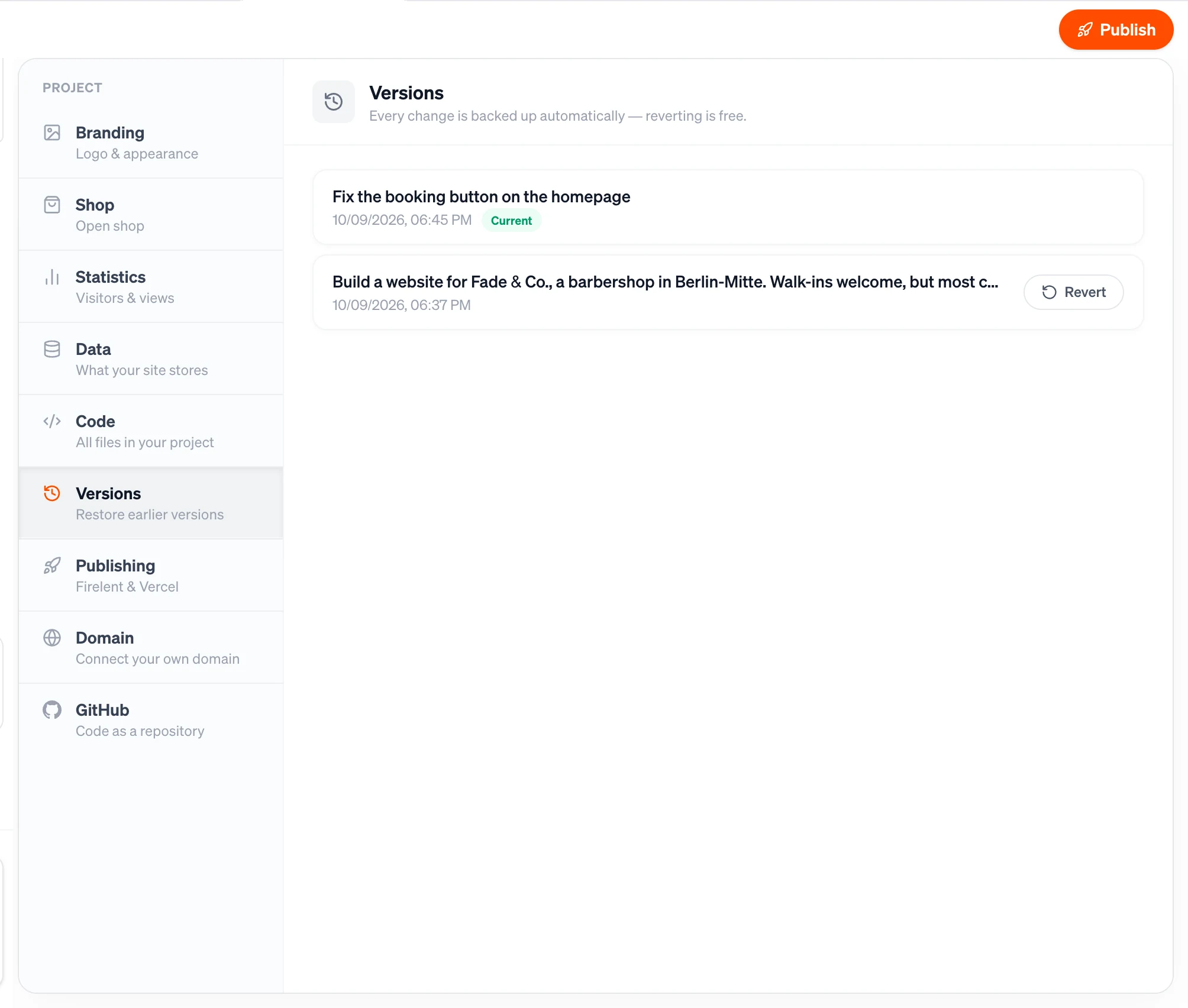
What's in the list#
Every build and every change made through the chat creates a new version. The list shows them newest first, each with the prompt that made it — or First version for where it all began — and when it happened. The version you're on now is marked Current.
Go back to an earlier version#
Find the version you want
Look through the list for the change you want to go back to.
Click Revert, then Really revert?
Click Revert on that version. The button changes to Really revert? — click it again to confirm.
Check the preview
Firelent restores that version and shows it in your preview.
Reverting is free: it doesn't use any credits or run any AI.
Nothing gets lost#
Going back doesn't delete anything. The restore is added to the list as a new version, and every version after the one you went back to stays where it is — so you can always return to them.
Good to know#
- Your live site updates when you publish. Reverting changes your project and your preview; publish again to put the restored version live.
- Some things aren't part of versions. Your logo, your products and your business details are saved separately, so reverting doesn't change them.
- Versions wait for builds. While Firelent is building, Revert waits until it's done.
- If you use GitHub, a restore is committed to your repository like any other change.